19 workstations under control from the owner's phone
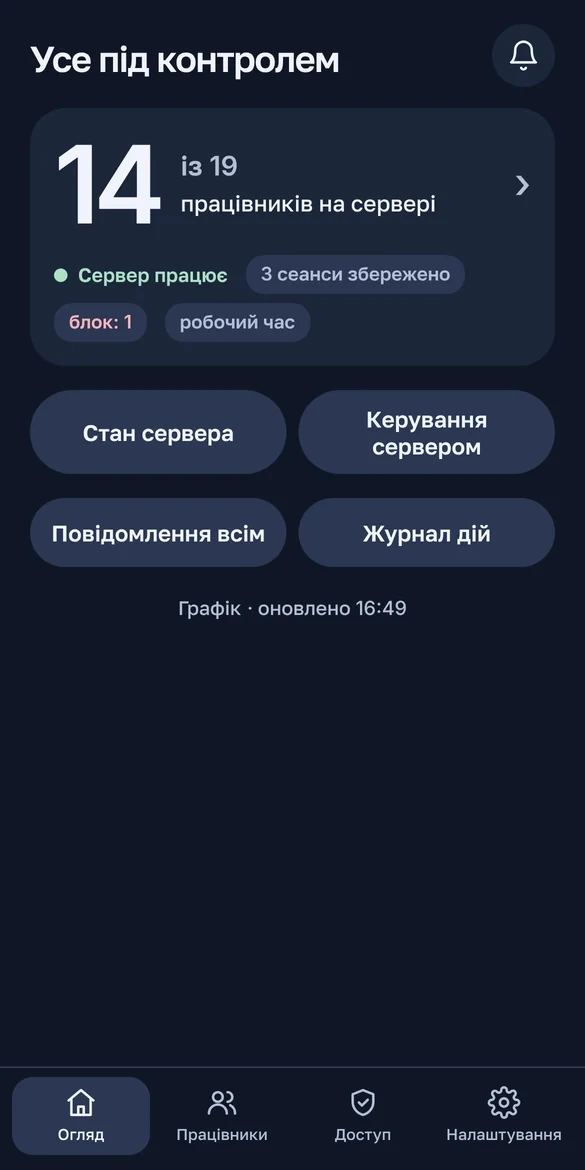
The office owner already had a simple bot that could turn the server on and off. For everything else he called the admin. I built him a Telegram bot with a Mini App panel. Now he sees who's working, shuts off logins, adds people, restarts the server and gets alerts himself. From his phone, without remote desktop.

What was broken
The owner had a bot, but a simple one: turn on, turn off, check the state. Everything else went through the admin. Who’s on the server right now, how to shut someone’s login off, how to add a new person, how to restart. The owner wanted to do it himself and from his phone, without remote desktop or a console.
What the client wanted
- Everything from a phone, and clear enough for someone without a technical background.
- Several people with different rights. The point: the owner administers himself instead of calling the admin.
- Power, blocks and new employees only with a PIN.
- A block must not kill anyone’s work: the session is kept and the person continues where they left off.
- “Delete” an employee means disable. The data stays, access can be restored.
Constraints
- The old bot keeps working until testing ends, and I don’t touch it.
- I don’t touch the office’s accounting program either. The bot can only read its state.
- No monitoring of screens and no screenshots. That was a firm requirement.
- No physical access to the office, everything remote.
- Every change arrives as a ready PowerShell script: with a backup, a separate rollback script and a syntax check before delivery.
The solution
The bot lives on the same host that runs the office’s virtual machine and controls it from inside. It only knocks outward itself: to Telegram and to the tunnel. Not a single port is open from outside.
The bot only connects out — to Telegram and to the tunnel. No port is open to the outside.
- PowerShell 5.1, one process. It’s already in every Windows Server, so there’s nothing to install. It listens to Telegram and serves the panel at the same time, and sends long jobs to the background so the bot doesn’t freeze.
- Mini App. Basically a web page that opens inside Telegram like an app. The chat is left with just short alerts and “Allow / Deny” buttons.
- Cloudflare Tunnel. The server pulls the connection outward itself, and the panel gets an HTTPS address. Meanwhile it only listens on the host’s local address.
- Every request from the panel carries Telegram’s cryptographic seal (HMAC-SHA256). You can’t forge it without the bot token, so a foreign request gets cut off.
- The PIN isn’t stored as is, only its PBKDF2 hash. You can’t get the PIN back from the hash, and PBKDF2 is deliberately slow so brute force makes no sense. Five mistakes in a row — blocked.
- The bot reaches the VM through PowerShell Direct. It’s a channel between the Hyper-V host and its virtual machine that doesn’t go over the network at all. The bot signs in with a service account that’s barred from normal logins. Its password is encrypted with DPAPI, Windows’ built-in encryption tied to the machine.
- Who’s connected to the server and for how long, the bot learns from the WTS API, a built-in Windows interface. Employee statuses come from there too.
- WireGuard. Employees connect through it. The bot adds and disables keys on the fly without dropping anyone else’s connection.
- The bot’s data lives in JSON files, with an action log next to them. A separate database for a dozen bot users would be one more thing to maintain.
- A scheduled task brings the bot up with the system and checks it every 5 minutes. It won’t let a second copy start.
Development story
From a stub to version 1.15.0, the bot grew in small updates. Each one touched only the new bot’s files and had its own rollback script.
A stub next to the old bot
Development had to happen on the live server, and the working bot couldn’t be touched. So: a separate test bot, a separate folder, a separate task. The old bot I only read. The watchdog and second-copy protection were there from day one.
Menu, PIN and roles
The first version lived in the chat: a menu, a hashed PIN, access grants, an action log. If the PIN is forgotten, it’s reset by a one-time code that’s visible only on the server itself.
A Mini App instead of chat buttons
A menu of buttons in the chat looked cheap, and that was obvious right away. I moved to a Mini App panel following the agreed prototype, with light and dark themes. First on a temporary tunnel with a random address, then on a permanent one.
Who's working and for how long
To see who’s on the server and for how long, the VM got a service account with no login right and an encrypted password. The output is a list with names and statuses.
Blocking logins without losing work
The owner needed to shut off logins without anyone’s work going up in smoke. One employee or everyone can be blocked: for 15 minutes, an hour, a day or until further notice. The session is disconnected but kept, and the block lifts by itself.
Working hours
Nobody saw who logged in at night or on Sunday. The panel got a working schedule. A login outside it reaches the owner as an “Allow / Deny” request. Denying with a PIN disconnects the person and blocks them until morning.
The screen didn't fit a phone
The home screen and the block-duration picker didn’t fit on a phone. I tightened the interface; it now works without scrolling.
A new employee with one button
One button creates an account, a VPN key and a signed connection shortcut (the signature removes the Windows warning). No more than 5 a day. “Delete” actually disables login and VPN; the profile stays.
"Couldn't add the employee"
The very first test failed with exactly that. PowerShell doesn’t care about variable case, so my $n and $N turned out to be the same variable, and the new user’s number kept being overwritten. I renamed them. And so it doesn’t happen again, the code is now automatically checked for such clashes before every delivery.
The owner administers himself
The owner wanted to administer himself, power included. Owner and admin got full rights, power behind a PIN. A “manager” role appeared: employees, blocks, schedule. Along the way I reworked the filter row that had to be scrolled sideways.
One-time invitations
The client wanted to add people straight from his contacts. Can’t be done: under Telegram’s rules a bot can’t message first someone who never started it. I made one-time links with a role, valid for 24 hours. Only their hash is stored, and an active invitation can be cancelled.
Maintenance without calling the admin
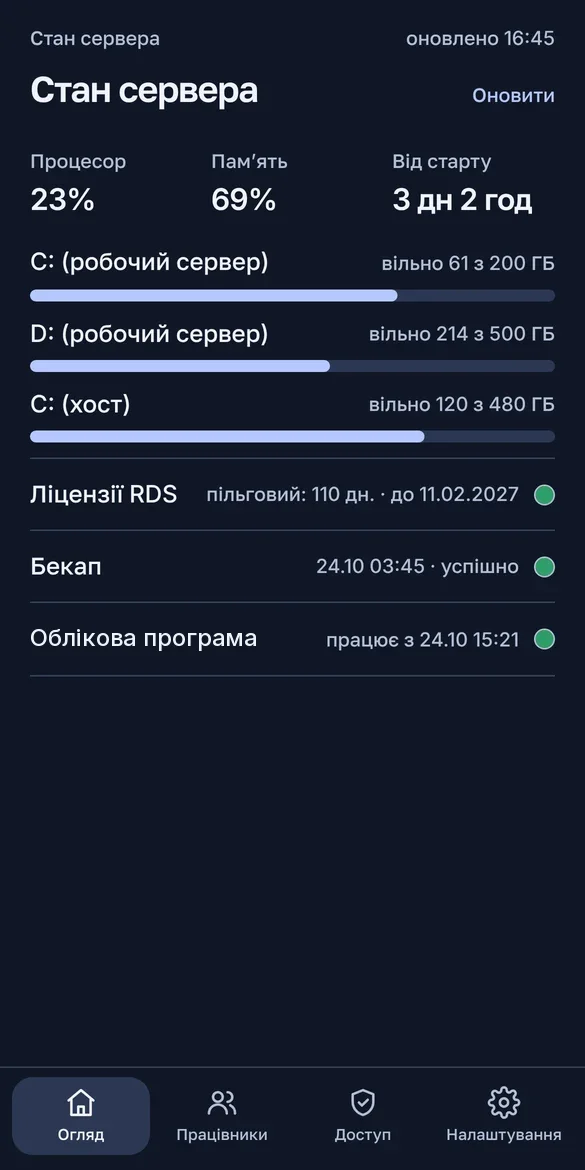
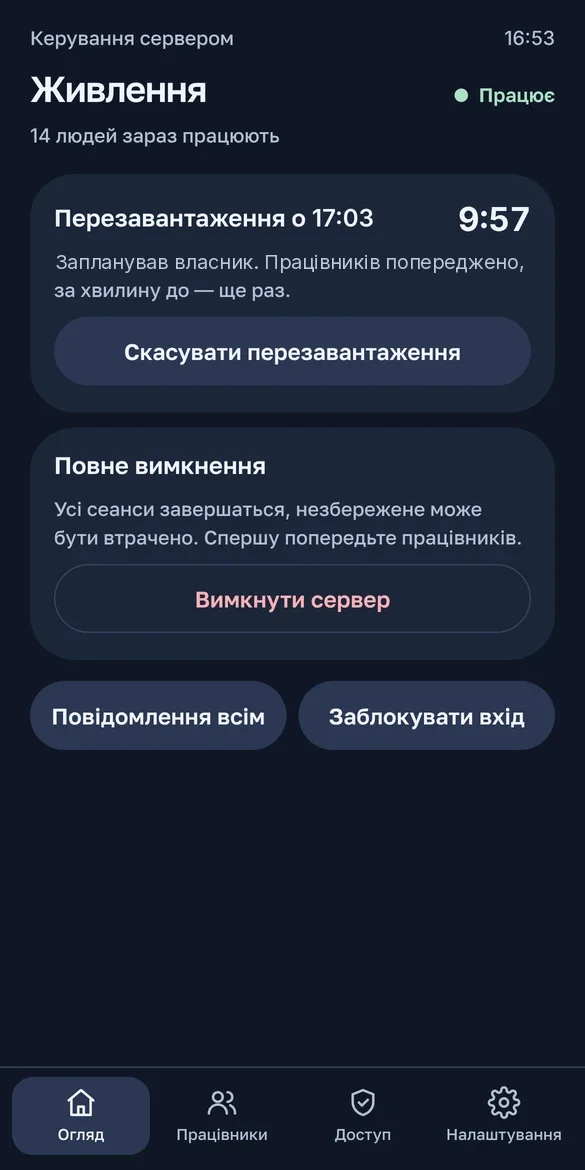
A few actions still meant calling the admin. I added password changes, a message to everyone’s screen, and a restart with a 1, 5, 10 or 15-minute warning that can be cancelled. Plus a separate “Server status” screen: CPU, memory, disks, backup, warnings.
Staff list: from 12 s to 75 ms
The staff list suddenly stopped fitting into 12 seconds and failed on a timeout. The culprit was the Windows block check, done separately for each user. I rewrote it as one query for everyone, which came out at 75 ms. I pushed the first status check back to a minute after start so it wouldn’t get in the way.
A live test on the real server
Everything had to be tested on the real server without affecting people. Through the bot we created a test employee, ran a password change and a broadcast on it, then deleted it and cleaned up after ourselves. The restart was tested live too.
A countdown to the restart
The client wanted to see a timer until the restart, then “restarting” and “online”. The panel now has a live countdown, and the chat gets one message that updates instead of a stream of new ones. “Status” and “Control” moved to the home screen.
Licences and the accounting program
Nobody tracked when the remote-access licences run out or whether the accounting program was running. Now there’s a day counter with warnings at 30, 14, 7, 3, 1 and 0 days. The bot only reads the accounting program and, while it’s down, reminds every hour.
A status label broke out of its row
On a narrow screen the status label spilled past its row. I stacked the labels in one column and shortened the captions.
Secrets stay out of the chat
Two findings. The PIN timer kept running while the PIN was still being checked. And passwords and archives arrived in the chat, where they sit forever.
The timer now freezes during the check. Secrets live for 15 minutes in the panel’s “Notifications” tab, and the chat gets only a reminder. The tabs got badges along the way. Tested on the live server.
Replacing the old bot with zero downtime
The new bot had to replace the old one without the office going a single minute without control. A migration package hands over the token, moves the access rights and disables the old bot without deleting it. If something’s off, the rollback turns the old one back on. After that, the bot was handed over to the owner.
Smaller bugs along the way
return , $listin PowerShell broke filtering further down the pipeline, and invitations and the notification counter came out wrong. Now I put the result into a variable first.- Two panel styles had the same name and broke the timer’s look. Renamed.
- Telegram’s forwarding ban would have blocked handing the archive to a new employee. I lifted it; the 15-minute lifetime protects it instead.
- For the interface I built a local bench: the real bot code runs against a mock of Telegram and the server. I checked the panel layout there before delivery.
What I took away
- I put the new next to the old, not instead of it. The test bot let me work on the live server, and the owner never spent a day without control.
- Small updates with a rollback are cheaper than one big one. The add-employee and staff-list timeout bugs went away in the very next update, because it was clear exactly what broke.
- I ask the system once, not in a loop. The difference: a 12-second timeout versus 75 ms.
- I don’t send secrets to the chat. The chat remembers everything forever; the panel shows a password for 15 minutes and forgets it.
- A local bench is faster than the live server. Layout and flows show up in seconds, and the live server is left for the final check.
Result
Version 1.15.0 runs on the live server, and the bot is with the owner. Tested live:
- adding, disabling and restoring an employee;
- a password change and a broadcast to screens;
- a restart with a countdown and the server status;
- notifications and downloading a new employee’s archive.
The bot comes with a step-by-step guide for the owner.